
| Configuring the Wildcat! Navigator | |
Once your Wildcat Navigator (wcNav) software is installed, double-click on the Wildcat Navigator icon to open the program. When you first run wcNav, it will ask you where your web browser is located. You can point it to your browser at that time, or at any future point you can point it to your web browser by clicking on View in the Connection Manager, selecting Options from the drop-down menu, click on the Browser tab, and then click on the Search button. This should allow wcNav to find your browser automatically. If it doesn't find your browser, you can click on the Browse button to point it to your web browser manually. Before you close this window, click on the Reset Associations button -- this will help make sure your web browser can run the wcNav clients properly.
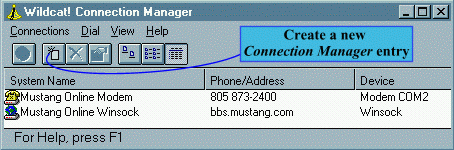 Now
it's time to configure the program to connect with Fire Escape's
BBS. How you do this depends on whether you intend to connect by dialing
the local phone number or connecting
over the Internet via your local Internet Service
Provider (ISP). If St. Louis is a local phone call for you, we
reccommend you use the dial-up access for most of your calls. If
all the phone lines are busy, however, and you have an account
with a local ISP, then you may want to look at the option of
connecting over the Internet as a backup plan.
Now
it's time to configure the program to connect with Fire Escape's
BBS. How you do this depends on whether you intend to connect by dialing
the local phone number or connecting
over the Internet via your local Internet Service
Provider (ISP). If St. Louis is a local phone call for you, we
reccommend you use the dial-up access for most of your calls. If
all the phone lines are busy, however, and you have an account
with a local ISP, then you may want to look at the option of
connecting over the Internet as a backup plan.
To configure Wildcat Navigator for a local dial-up connection, follow these steps:
From the Connections menu, select New.
From within the New Connections dialog box, enter the following information:

Under System, enter Fire Escape's BBS. You can really put anything you like here...this will be the name of the icon you click on when you wish to call us.
Under Phone/Host, enter 588-0780. Or, if you have call waiting, enter *70,588-0780 to disable call waiting while you're connected to Fire Escape's BBS. Leave the area code blank unless St. Louis is a long-distance call for you.
Under User ID, put your ALIAS, or LOGON NAME, if you used a nickname to open your account, you need to put that here instead of your real name. If it is more than one word then separate the words by a space.
Under Password, enter your choice for your password on our system. We do not assign you a password, so you are free to pick anything you like...just remember it, because you won't be able to get on without your password! If you have already opened an account, enter here the same password you entered on your account when you opened it.
Under Device to Use, select the appropriate COM port. If you aren't sure which COM port to enter, open your regular communications program and check to see which one it has been using. Select the same COM port here.
You should probably leave these two checkboxes at their default settings (shown).
Click on OK and you're ready to dial-up Fire Escape's BBS and login to the system.
To configure Wildcat Navigator for an Internet connection, follow these steps:
From the Connections menu, select New.
From within the New Connections dialog box, enter the following information:

Under System, enter Fire Escape's BBS Telnet. You can really put anything you like here...this will be the name of the icon you click on when you wish to call us.
Under Phone/Host, enter bbs.fehq.org.
Under User ID, put your ALIAS, or LOGIN NAME, if you used a nickname to open your account, you need to put that here instead of your real name. If it is more than one word then separate the words by a space.
Under Password, enter your choice for your password on our system. We do not assign you a password, so you are free to pick anything you like...just remember it, because you won't be able to get on without your password! If you have already opened an account, enter here the same password you entered on your account when you opened it.
Under Device to Use, select Winsock, as shown above.
You should probably leave these two checkboxes at their default settings (shown).
Select OK and you're done configuring this entry, and ready to call! Remember that you must be connected to the Internet before you attempt to use this entry...the program assumes you are already connected to the Internet before you attempt to use this entry.
Original text used with permission from Chemeketa Online located on the campus of Chemeketa Community College in Salem, Oregon. Chemeketa Online has been offering college courses online since 1990. It was then subsequently stolen shamelessly (as you can tell) from Cajun Clickers BBS at clicker1.clickers.org...